

Results 1 to 19 of 19
Thread: Photochop tips and tricks
-
03-02-2006 #1

 Registered User
- Join Date
- Dec 2004
- Location
- Sarasota, Fl
- Posts
- 1,717
Photochop tips and tricks
I was thinking that there seems to be a lot of interest in this kind of thing in general, especially as a cheap alternative to proper renderings or buying 18 sets of wheels and trying each set on your car until you find just the right ones.
Anyway, I thought I'd share some basic tips to either help with your own attempts, or when requesting 'chops on the forum. Heck, maybe we can build a nice list and make this a sticky.
Images:
1) Always provide the best image you can. Front 3/4 shots and side shots are easiest and best to work with. Make sure the image size is as large as you can get (i.e. 300 dpi is great!).
2) If you don't have a decent pic of your own car, find an image of a similar car through a image search using Google or alltheweb.com. It's unlikely your car is all that rare that you won't find a decent pic to work with.
3) It's always easier to work with a car that is complete, has a decent paint job, etc. The paint job evenness is especially important when doing color/paint changes. If the images of you car don't meet this criteria, do the image search thing.
4) When working on a wheel 'chop, it is best to start with an image that has the wheels you're interested in at a similar angle as the car you're putting 'em on. "Catalog" images of wheels typically suck to work with in general. Try doing an image search for a car that has the kind of wheels you're wanting to 'chop.
Software:
1) Sure, Photoshop is the standard, but most decent consumer level photo editing software is capable of doing the kind of stuff you'll want to do (i.e. color changes, wheel 'chops, lowering 'chops, stance 'chops, window tinting, etc.). Just make sure whatever you're using has these basic abilities and tools: ways to do careful selecting, ways to work with multiple layers, ways to change hue/saturation and brightness/contrast, and some basic filters (for lighting effects or similar).
2) If you can't afford a full-on version of Photoshop CS (very expensive), there is a consumer version that has lots of the same functionality and is fairly easy to use. It's called Photoshop Elements and it retails for less than $100 and is available for Mac and Windows. You might find it cheaper as bundled with a scanner, like I did... the scanner was only $40 and came with Elements.
3) Most decent photo editing software typically has a bit of a learning curve. It can be frustrating, but believe me that it is manageable. Be patient and check out the tutorials to get the basics.
Photochopping tips:
1) Don't do any selection or painting by hand, ever. It just won't be accurate enough. Use a tool like the "Polygonal lasso" tool, which allows for clicking along the way for anchor points between small segments.
2) Use hue/saturation controls to do color changes. DO NOT USE A PAINT TOOL!
3) Check out some of the many photochop websites for other tips and tricks for doing different things. Many have good tutorials for doing car specific stuff.
Anyone got other tips???
Anyway, there's a ton more to it than this, but most of it is just a matter of trial and error and practice. Now get 'chopping.
-
03-03-2006 #2 Registered User
- Join Date
- Nov 2004
- Location
- Eastern Washington
- Posts
- 1,346
Good thread!
I would like to add a few tips that I find VERY helpful.
If you find a color you like, save it (the hue/saturation). You can save it in a file and just open it once you need it again. However, that color will look different on just about any car since it is simply lays over the original color like plastic wrap. If you are planning on doctoring the same image over and over, however, it makes it much easier if you dont have to keep fishing for the color over and over.
Also, just a hint. Colors on cars, such as white and black are very hard to chop. As a color base, they dont allow for easy modifications.
03-17-2006 #3 Registered User
- Join Date
- Mar 2006
- Posts
- 94
Another tip would be:
Don't use the 'Magic Wand' tool in Photoshop.It's too 'wonky' and often selects areas you don't want selected simply because they're similar in color
Here are a few Photoshop tutorial sites
http://www.good-tutorials.com/
http://www.planetphotoshop.com/tutorials.html
http://www.absolutecross.com/tutorials/photoshop/
http://www.tutorialized.com/tutorials/Photoshop/1
11-16-2006 #4 Registered User
- Join Date
- Jan 2005
- Location
- Tomball, TX
- Posts
- 438

Thought I'd add one more tutorial website:
http://www.photoworkshop.com/ - go to "Adobe Training Arena" under the "Learning Centers" heading on the main menuRyan
'68 Camaro (slowly coming back together...very slowly)
12-09-2006 #5
Registered User
- Join Date
- Dec 2006
- Posts
- 15
Digimods is where I learned everything from. Below is the link to the "Photoshop Bible"
http://www.digimods.co.uk/tutorials/tutorials.htm
Also streetfire.net has a good photoshop section. Below is a link to the site. I've browsed there a little and was really impressed with the work i saw.
http://forums.streetfire.net/forumdisplay.php?f=37
02-27-2007 #6
Registered User
- Join Date
- Jan 2007
- Location
- Royal Oak
- Posts
- 18
For those that don't want to spring for Photoshop, Gimp is an open source project that does most of the same things and a few things Photoshop doesn't. The menus aren't laid out as nice but it's free.
02-28-2007 #7
Registered User
- Join Date
- Dec 2004
- Location
- Sarasota, Fl
- Posts
- 1,717
And it's an especially nice choice for Linux users. Originally Posted by FASTRC5
03-29-2007 #8
New to Pro-Touring
- Join Date
- Feb 2007
- Posts
- 6
I found a free version called PhotoPlus 6.0. I dont know if it has all the features of PhotoShop but it worked when I lowered the SS.
05-15-2007 #9
Registered User
- Join Date
- Jul 2004
- Location
- Jacksonville, FL.
- Posts
- 274
Also be aware that many products you buy such as scanners or digital cameras sometimes come with software such as photoshop elements.
A couple of tips
Save a copy after each little change you make. Decide on your own naming convention such as car_001.psd or car.5.12.psd (5 being the month and 15 being the day). Modern computers have plenty of space and it will save you a lot of time if you need to go back to a previous version.
Always make sure to save a native format for your editor. For example photoshop is psd. A jpg, gif, bmp, tiff, all do not include layer information, etc the photoshop keeps in the file.
If you are adding wheels on your car, use some sort of measure point on the car to figure out the correct size. Use the height of the door or something you have an exact size for and use this to size your wheel to the correct size. You need to know how many centimeters you just chopped so you can actually create your photoshop masterpiece in reality.
Tutorials are a great place to learn what the program can do but I suggest taking lessons on how the individual works. This will transfer better from program to program. Not all programs have the same tools but they have ones that do similar things.
Gimp is very close to photoshop. I do second FASTRC5 suggestion for those to check it out.
What if you really want to be adventurous and model your own car or rims!!!?? There is a free 3d program call SketchUp and you can see some of others models
Prowler
Mini Cooper
Bugatti Veyron rolling on dubs
It also has differnt styles you can render your model with and make it look like a blueprint.Last edited by camarorider; 05-15-2007 at 12:58 PM.
10-31-2007 #10 Registered User
- Join Date
- Oct 2007
- Location
- Buena Park, CA
- Posts
- 197
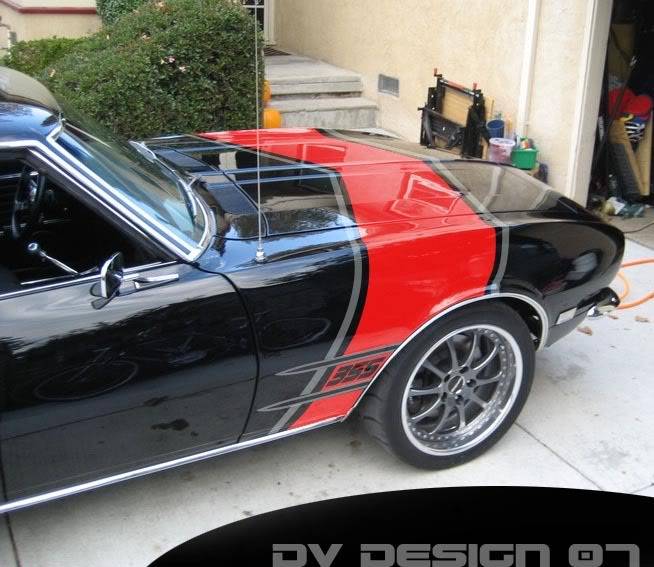
Quick response to all color Changing of paint or graphic schemes.
1. Make a copy of the original color (body outline) using pen/Bezier tool & layers.
2. Desaturate color - Image/adjust/Desaturate
3. Make a copy an fill with Color of choice (make sure this copy is above the previous desaturated color).
4. Go to layers palette, (the new color layer) go to overlay or screen (top left pull down tab) you can adjust
the Opacity to desired effect and there you go!
Yes, I know the Symmetry is off slightly on the center of the hood.
Give it a try!
- DV

Here is a sample pic: The car had no graphic prior to me working on it.
DVDesign - Portfolio work
Website: vierstradesign.com
___________________________
Don Vierstra Automotive Design & Illustration
DV Email
12-04-2007 #11 Registered User
- Join Date
- Feb 2006
- Location
- SoCal
- Posts
- 1,622
Whats a "Bezier" tool? Originally Posted by DVierstra
John'66 Chevy II - The "NEW" '69 Camaro!
***Under Construction***
Build Update Link:
https://www.pro-touring.com/forum/sh...ad.php?t=17108
12-19-2007 #12
Registered User
- Join Date
- Oct 2007
- Location
- Buena Park, CA
- Posts
- 197
Also known as the "Pen" Tool.
DVDesign - Portfolio work
Website: vierstradesign.com
___________________________
Don Vierstra Automotive Design & Illustration
DV Email
09-12-2008 #13 Registered User
- Join Date
- Nov 2004
- Location
- KC, MO
- Posts
- 298
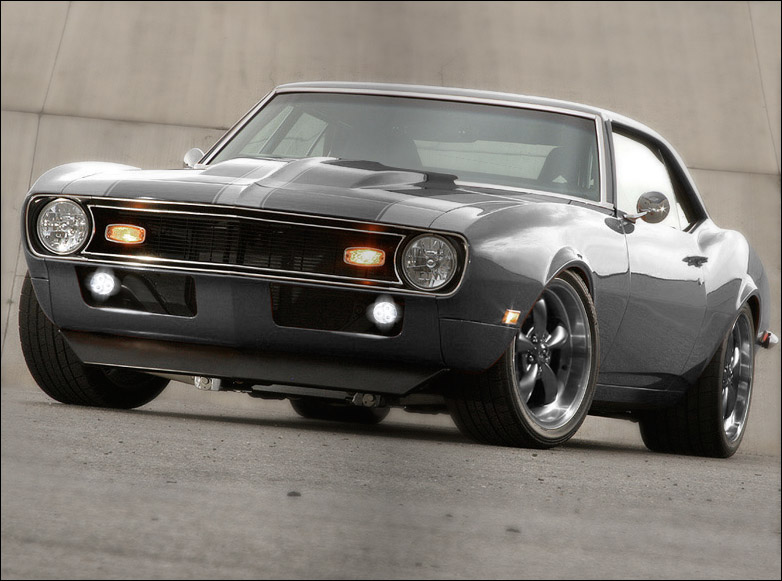
The pen tool, paths, and layers will allow you to do almost anything you could want to do.
Also, if the background is busy, giving it a gausian blur helps tone it down so your car will stand out without making it look fake or out of place.
EXAMPLE:
05-29-2009 #14 Registered User
- Join Date
- May 2008
- Location
- Austin, Tx.
- Posts
- 1,539
Dude, Originally Posted by Jarcaines

I don't think I have EVER seen a better looking '68... Awesome stance and color combination...
VERY, VERY NICE!!! Ray
Ray
FEW FRILLS, just BIG CHILLS!!!
1972 VW Bug (427LS/T56 Magnum/9"-3.70 gears)
18"x10-1/2" (315/30/18) Front, 18”x12" (335/30/18”) Rear
https://www.pro-touring.com/showthre...-Lady-Bug-quot
07-04-2009 #15 Registered User
- Join Date
- May 2009
- Location
- Centennial, CO
- Posts
- 402
Thanks!
Well with the posts here and about 2.5 hours of my time I turned the first pic (which I borrowed from britishgreen68) into the second. I have never messed with photoshop or GIMP before. It took some trial and error but GIMP works well. Thanks to all that posted tips and tricks now I will spend even less time woking on my 63 nova. HAHAHA!
12-12-2009 #16
Registered User
- Join Date
- Dec 2005
- Posts
- 40
I need to try some of these nice tips !!
69 SS396 Camino 540 FAST EFI BBC
http://profile.imageshack.us/user/peetsjunkie/images Check out the latest stuff here!
12-24-2010 #17
Registered User
- Join Date
- Sep 2009
- Posts
- 11
nice camaro.......!!!!!!!!!!!!ya
03-08-2011 #18 Registered User
- Join Date
- Nov 2010
- Location
- Ventura County CA
- Posts
- 556
After seeing this thread, I was inspired to try tweaking a photo. I don't have Photoshop, so I used a free online tool called Pixlr (http://pixlr.com/editor/) that's very similar.
Original and retouched attached. Here is what I did
- Duplicated layer and desaturated (to grayscale)
- Added a Gaussian Blur to the desaturated layer
- Erased desaturated layer in the area of my car to bring back the color and sharpness
- Increase color saturation slightly on the original layer to help the car "pop"
- Created a black layer on top, reduced the opacity and used a large feathered eraser to create the vignette
- Selected a rectangular "crop" area, inverted the selection and filled the top & bottom black to create the letterbox
What do you experts think? What could I have done to make it better or easier?
05-18-2011 #19
Registered User
- Join Date
- Nov 2004
- Location
- KC, MO
- Posts
- 298
Very nice Bandit!


 Reply With Quote